MEMLNaut Firmware Guide
There are several firmwares available, to configure the MEMLNaut in different modes, with varied approaches to signal processing and machine learning.
Installing a firmware
Each firmware is downloadable as a .uf2 file.
To install one, you need the reset and boot select buttons. They’re on the top edge of the MEMLNaut, under the Reset and Boot Sel labels printed on the panel. From the front, they’re between the headphone socket and the SD card, with reset on the left.
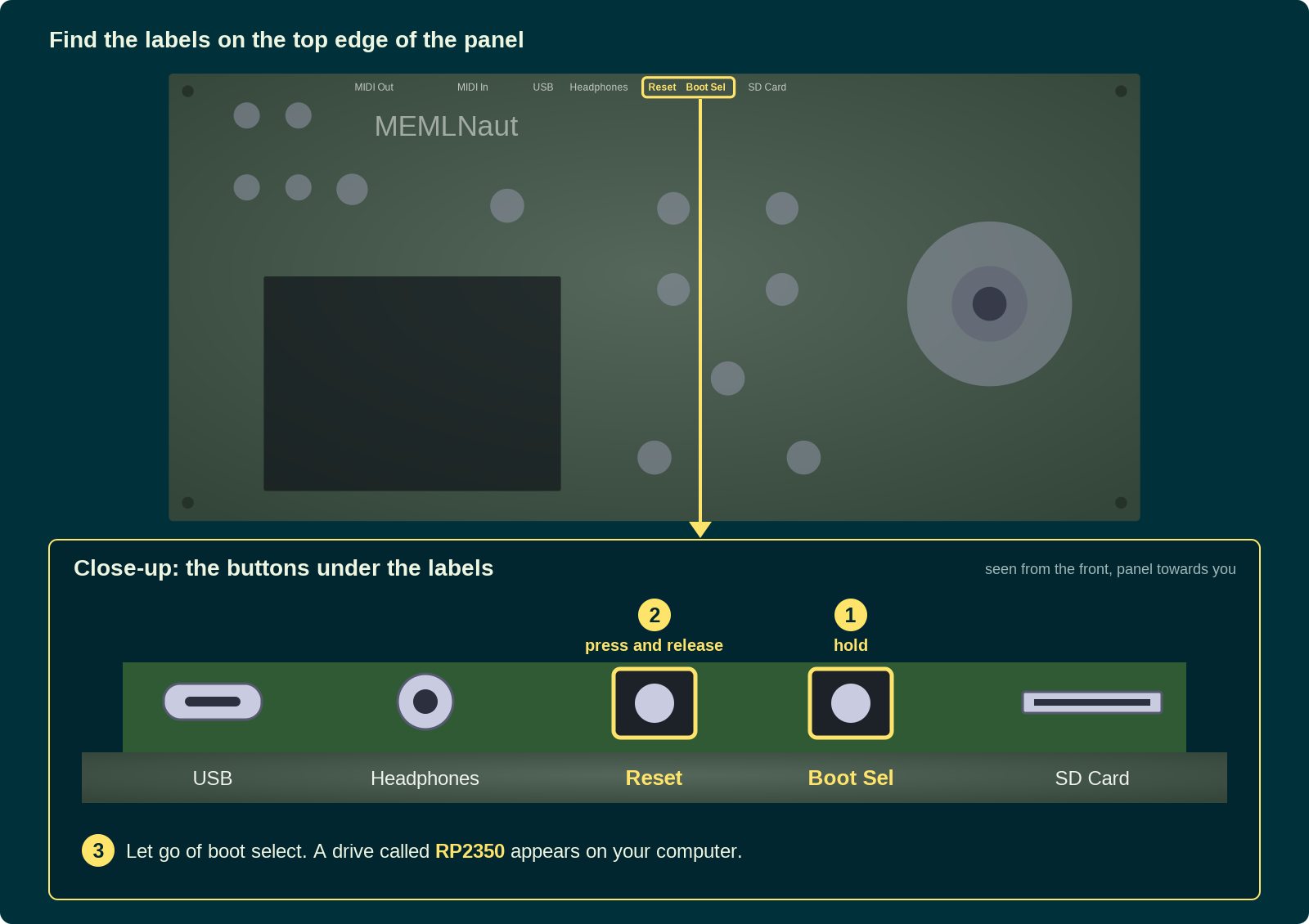
To install a firmware:
- Connect the MEMLNaut to your computer.
- Put the MEMLNaut into boot select mode: press and release
resetwhile holding down theboot selectbutton, then let go ofboot select. - The microcontroller will now appear as a drive called
RP2350on your computer; drag the.uf2file onto this drive. - The firmware will now upload, and the MEMLNaut will reboot with the new firmware running.
Firmwares
The current firmwares all use NISPS. They share one set of controls: like, dislike, drag, scramble and jolt. You can save your models to the SD card. Each firmware’s page links to its download.
| Firmware | What it does |
|---|---|
| MEMLCelium | Three-voice formant synth with a ratio sequencer |
| MixMasterMEML | Three drum voices, bassline, arpeggiator and grain delay, with a mixer |
| VerbFX | Reverb, filterbank and delays for the line input |
| LiveFX | Ten tempo-synced effects for live performance and DJing |
| VoiceFX | Voice effects: grain delays, delay, reverb, flanger, compressor and vocal EQ |
| NautLinear | Waveshaper bank with preamp, damper and feedback, for the line input |
| Infinibits | Granular drone synth |
| Paramsite | MIDI controller for any synth, drum machine, effect or DAW |
| PAF Synth | Phase Aligned Formant synth, played over MIDI |
Older firmwares, using the POPR and CARL approaches, are listed under Legacy in the sidebar.
Updating
Models saved to the SD card by an older version of a firmware may not load after you update it. If that happens, train the firmware again and save a new model. Updating doesn’t delete the old files from the SD card.